
EXIF Editor
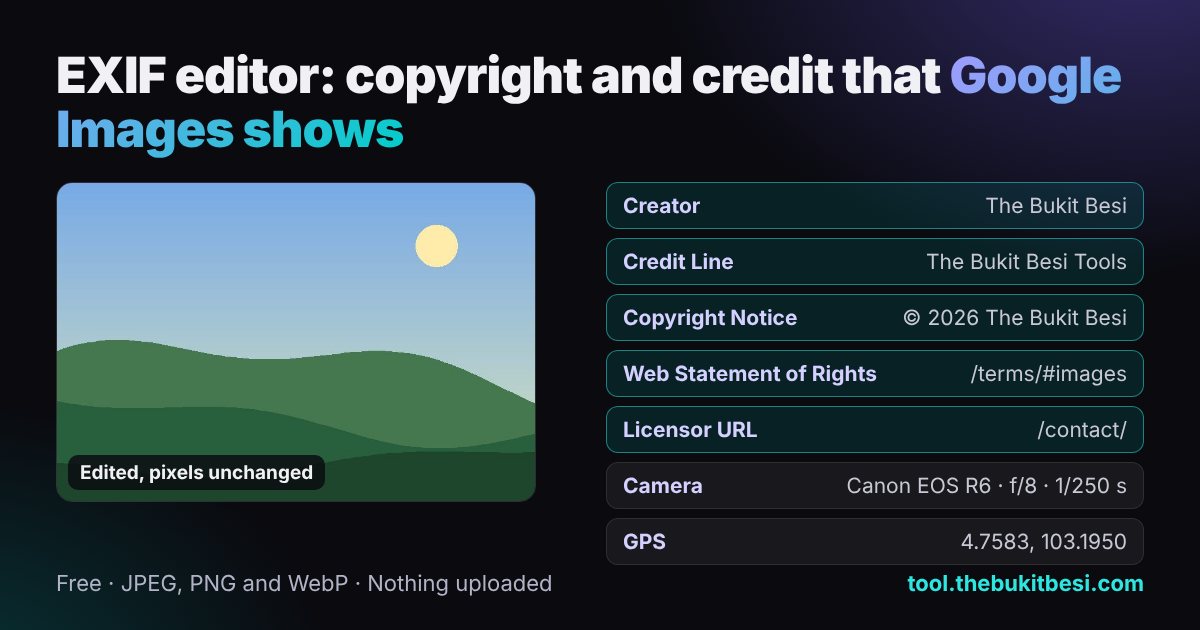
Google Images reads five IPTC fields from a photo: Creator, Credit Line, Copyright Notice, Web Statement of Rights and Licensor URL, and shows them as the image credit and the Licensable badge. This free EXIF editor writes all five, shows every EXIF, GPS and XMP field, and lets you change the date taken, camera and location or remove them, without recompressing the image. Drop a JPEG, PNG or WebP below; nothing is uploaded.
Advertisement
How to edit EXIF data
- Choose a photo (JPEG, PNG or WebP) or drop it on the box. The list under "Found in this photo" shows what it reveals: GPS position, date, camera, serial numbers, a thumbnail, editing software.
- Fill Copyright and credit. Creator, Credit line and Copyright notice are what Google Images displays. Add a licence page URL and a contact or shop URL to make the photo eligible for the Licensable badge.
- Change or clear any other field. Empty a field to delete it. Tick Remove location to drop every GPS tag, or type new coordinates in decimal degrees.
- Save and download. The file keeps its format and its pixels; the name gets
-edited. Load several photos and use Copyright to all photos to stamp the same credit on every one and get a ZIP.
What Google Images reads from a photo
Google has said EXIF camera data is not a ranking factor. What it does use is IPTC photo metadata, the standard newsrooms and stock agencies use for credits. Google Images shows the Creator, Credit Line and Copyright Notice with the image, and uses Web Statement of Rights and Licensor URL for the Licensable badge (Google Search Central, IPTC). This editor writes them as XMP, the modern home for IPTC fields, and removes any old IPTC IIM block so two copies cannot disagree.
| Field | XMP property | IPTC IIM | EXIF | In Google Images |
|---|---|---|---|---|
| Creator | dc:creator | 2:80 By-line | Artist | Shown as the image credit (Creator) |
| Credit Line | photoshop:Credit | 2:110 Credit | – | Shown as the credit line |
| Copyright Notice | dc:rights | 2:116 Copyright Notice | Copyright | Shown as the copyright notice |
| Web Statement of Rights | xmpRights:WebStatement | – | – | Licence link; with it Google can show the Licensable badge |
| Licensor URL | plus:Licensor / plus:LicensorURL | – | – | "Get this image on" link to where the image can be licensed |
| Title | dc:title | 2:05 Object Name | – | Not displayed; describes the image |
| Description | dc:description | 2:120 Caption | ImageDescription | Not displayed; describes the image |
| Keywords | dc:subject | 2:25 Keywords | – | Not displayed |
Keep the metadata on your site. Image CDNs, WordPress thumbnail sizes and "optimise images" plugins often delete it from the copies they serve. Check a live image by downloading it from your page and opening it here; if the fields are gone, turn off metadata stripping in the optimiser or add ImageObject structured data with license, acquireLicensePage, creditText, creator and copyrightNotice, which Google reads from the page instead.
Advertisement
Why this editor does not lose quality
A photo file is a series of blocks: the compressed image, then separate blocks for EXIF, XMP, IPTC and the colour profile. This editor reads those blocks and rebuilds only the metadata ones. The compressed image data is copied byte for byte, so the picture is identical, not just "similar". Online editors that load the photo into a canvas and export it again recompress it, drop the colour profile and lose every field they do not rewrite.
- JPEG: EXIF and XMP go in APP1 segments after the JFIF header; old IPTC (APP13) is replaced by the XMP when you edit copyright.
- PNG: EXIF goes in an
eXIfchunk and XMP in aniTXtchunk, both before the image data. - WebP: EXIF and XMP chunks are added at the end and the extended header flags are set, as the WebP container specification requires.
- Kept as they are: byte order, the maker note, the thumbnail (unless you remove it), the colour profile and every tag you did not edit. Other XMP, such as Lightroom edit history, is replaced when you change the copyright fields.
What your photos can reveal
Phone photos usually carry the exact place and time they were taken. The sample on this page shows a GPS position good to a few metres, the camera's serial number, the owner's name, the editing software and a thumbnail that can still show the uncropped picture. Before posting a photo of your home, your children or a product you ship from home, remove the location here or strip everything with the EXIF remover.
Disclaimer: embedded copyright details identify you as the owner but do not register or enforce copyright, and Google decides when to show credits or the Licensable badge. Keep your original files; this tool is provided as is.
Sources
Frequently asked questions
What is EXIF data?
EXIF (Exchangeable image file format) is data a camera or phone writes inside a photo: make and model, lens, shutter speed, aperture, ISO, the date and time taken, orientation, often the GPS position and a small preview thumbnail. It sits in its own block next to the image data, so you can read or change it without touching the pixels. The sample photo on this page holds 8 kinds of personal data, including a GPS position at Bukit Besi, Terengganu (4.75833, 103.195).
Does EXIF data help SEO or Google rankings?
No. Google has said EXIF is not used as a ranking factor, and camera settings or GPS tags will not lift a page. What Google Images does read is IPTC photo metadata: it shows the Creator, Credit Line and Copyright Notice next to an image, and the Web Statement of Rights and Licensor URL fields can add a Licensable badge with a link to where the image can be licensed. Rankings still come from the page: alt text, file name, captions, surrounding text and fast loading.
How do I get the Licensable badge in Google Images?
Give Google a licence link in one of two ways. Embed it in the file: fill Web Statement of Rights (the page that explains your licence) and Licensor URL (where to get a licence) in this editor and download. Or add ImageObject structured data with license and acquireLicensePage to the page that shows the image. Using both is safest, because many CMS and CDN resizers delete embedded metadata from the copies they serve. Google decides when to show the badge; the fields make an image eligible.
Does editing EXIF reduce image quality?
Not with this editor. It rewrites only the metadata blocks (EXIF, XMP and IPTC) and copies the compressed image data byte for byte, so nothing is decoded or recompressed. The file size changes only by the size of the metadata you add or remove. Editors that redraw the photo on a canvas and save it again lose quality and usually drop the colour profile too.
How do I change the date a photo was taken?
Load the photo, set Date taken under Camera and date, and download. The editor writes DateTimeOriginal and CreateDate in the EXIF format YYYY:MM:DD HH:MM:SS, for example 2026:08:31 07:42:10, which is what Google Photos, Windows and most galleries use to sort pictures. The file's modified date on your computer is separate and changes when you save the download.
How do I add or remove the GPS location of a photo?
To remove it, tick Remove location and download: every GPS tag is deleted while the rest stays. To add or correct it, type latitude and longitude in decimal degrees, such as 3.1390 and 101.6869 for Kuala Lumpur, and an altitude in metres if you want. The editor converts them to the degrees, minutes and seconds EXIF stores, with N/S and E/W references and the WGS-84 datum.
Are my photos uploaded to a server?
No. Reading, editing and saving happen in your browser with JavaScript, so photos never leave your device, and the page works offline after one visit. Only the copyright details you type can be kept, in the page link after #, so you can bookmark them and reuse them. JPEG, PNG and WebP up to 50 MB each are supported; HEIC must be converted to JPEG first.
Share this EXIF editor
Advertisement