
EXIF Remover
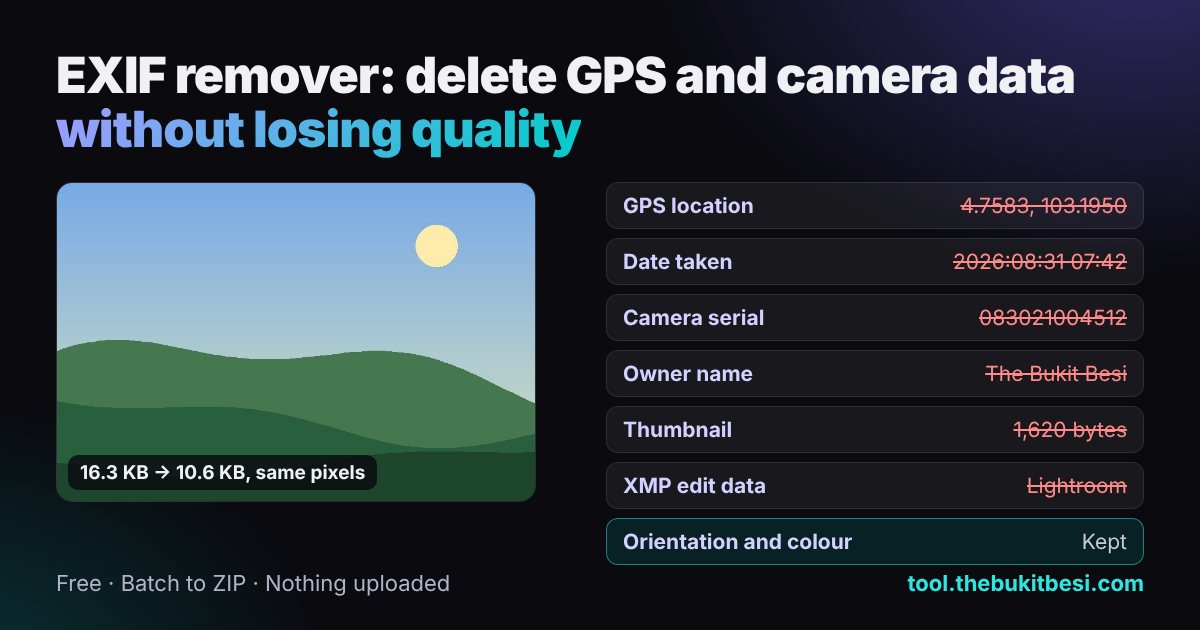
An EXIF remover deletes the hidden data in a photo, such as the GPS location, date taken and camera serial number, without re-saving the image. The sample photo below drops from 16,692 to 10,897 bytes, 34.7% smaller with every pixel unchanged. Drop JPEG, PNG or WebP photos to clean them one by one or as a ZIP; nothing is uploaded.
Advertisement
How to remove EXIF data from photos
- Choose or drop your photos. Each one is read on your device and listed with what it revealed: GPS location, date, camera, serial numbers, owner name, software, thumbnail and more.
- Check the options. The defaults keep orientation and the colour profile, which hold no personal data and stop photos from turning sideways or changing colour.
- Download. Each clean copy is named
-clean. With several photos, Download all saves one ZIP. - Check a result by opening it in the EXIF editor: "Found in this photo" should say no personal metadata.
What the EXIF remover finds and removes
Photos carry more than EXIF. This table lists every kind of metadata block the remover recognises, where it lives in each format and what happens to it by default.
| Metadata | Where it is stored | What it can contain | Default |
|---|---|---|---|
| EXIF (camera, date, GPS, thumbnail) | JPEG APP1, PNG eXIf, WebP EXIF | Camera, settings, dates, GPS, serial numbers, thumbnail | Removed (orientation can be kept) |
| XMP (Adobe, IPTC Core, edit history) | JPEG APP1, PNG iTXt, WebP XMP | Creator, rights, keywords, editing software and history | Removed (credit can be kept) |
| IPTC IIM / Photoshop | JPEG APP13 | Photographer, caption, copyright, location names | Removed |
| ICC colour profile | JPEG APP2, PNG iCCP, WebP ICCP | How colours should be displayed | Kept (optional) |
| Comment | JPEG COM | Free text written by the camera or software | Removed |
| Text chunk | PNG tEXt, zTXt, iTXt | Software name, AI generator prompts and settings | Removed |
| Content Credentials (C2PA) | JPEG APP11, PNG caBX | Signed history of how the image was made or edited | Removed |
| Multi-Picture index (MPF) | JPEG APP2 | Index of extra images stored after the main one | Removed with them |
| Data after the image end | After the end-of-image marker | Motion-photo video, HDR gain map, hidden files | Removed (optional) |
Advertisement
What it keeps, and why
- Image data, byte for byte. Nothing is decoded or recompressed, so there is no quality loss and no change to the pixels.
- Orientation (optional, on). Without it, phone photos stored sideways display sideways. The remover writes a new, minimal EXIF block holding only the orientation.
- Colour profile (optional, on). Wide-gamut photos need it to show correct colours. It contains no personal data.
- Image structure: the JPEG JFIF and Adobe colour-transform markers, PNG transparency, gamma, physical size and animation chunks, and WebP alpha and animation chunks.
- Copyright credit (optional, off). Tick it to keep Creator, Credit Line, Copyright Notice and licence links in a fresh XMP block, so Google Images can still credit you while GPS and camera data go.
Removing location on your phone or computer
This page cleans any photo in seconds, but your device can also stop leaks at the source:
- iPhone: when sharing, tap Options at the top of the share sheet and turn off Location. To stop recording it, go to Settings, Privacy and Security, Location Services, Camera and choose Never.
- Android (Google Camera): open the camera settings and turn off Save location. Other brands use a similar "location tags" switch.
- Windows: right-click the file, Properties, Details, Remove Properties and Personal Information.
- Mac: in Preview, Tools, Show Inspector, the info tab, GPS, Remove Location Info.
Disclaimer: the remover deletes the metadata it recognises (listed above). It cannot remove what is visible in the picture itself, such as street signs, faces or reflections, and a site you upload to may still record when and from where you uploaded. Keep your originals; this tool is provided as is.
Sources
Frequently asked questions
How do I remove EXIF data from a photo?
Choose or drop the photo on this page. The EXIF remover lists what the file reveals, removes it at once and gives you a clean copy named with -clean, for example holiday-clean.jpg. Choose several photos to clean them together and download them all as one ZIP. It works with JPEG, PNG and WebP and nothing is uploaded.
Does removing EXIF data reduce image quality?
No. The remover deletes only the metadata blocks and copies the compressed image data byte for byte, so every pixel is identical. The file just gets smaller: the sample photo goes from 16,692 to 10,897 bytes, 34.7% smaller. Tools that redraw the photo on a canvas and save it again do recompress it, which loses detail.
Why did my photo turn sideways after removing metadata?
Phones often save the picture sideways and add an EXIF Orientation tag telling viewers to rotate it. Delete that tag and the photo shows as stored, on its side. This remover keeps the Orientation tag by default, writing a new EXIF block that holds only the orientation, so the photo still displays upright while the GPS, date and camera data are gone.
Does removing EXIF delete the GPS location?
Yes. GPS latitude, longitude, altitude, direction and the GPS time are all EXIF tags, and the remover deletes the whole EXIF block. It also removes XMP and IPTC, where some apps store place names, and the embedded thumbnail. To remove only the location and keep the date and camera details, use the EXIF editor and tick Remove location.
What is removed from AI-generated PNG images?
Stable Diffusion WebUI saves the full prompt, negative prompt, seed and settings in a PNG text chunk called parameters, and ComfyUI saves prompt and workflow chunks. The remover deletes all PNG text chunks, eXIf, XMP and the timestamp chunk, while keeping chunks that affect how the image looks, such as transparency, gamma and the colour profile.
Should I keep the colour profile?
Usually yes, so it is kept by default. The ICC profile tells browsers how to show the colours; photos in Display P3 or Adobe RGB look dull or shifted without it. It holds no personal data, only colour information, and costs a few hundred bytes to a few kilobytes. Untick Keep colour profile only for sRGB images where every byte counts.
Are my photos uploaded to a server?
No. The remover runs in your browser with JavaScript, so photos never leave your device and it works offline after one visit. Each file can be up to 50 MB. HEIC photos from iPhones are not supported; convert them to JPEG first, or set Settings, Camera, Formats to Most Compatible so the camera saves JPEG.
Share this EXIF remover
Advertisement